Laptop Cooling Pads: Do They Actually Work?
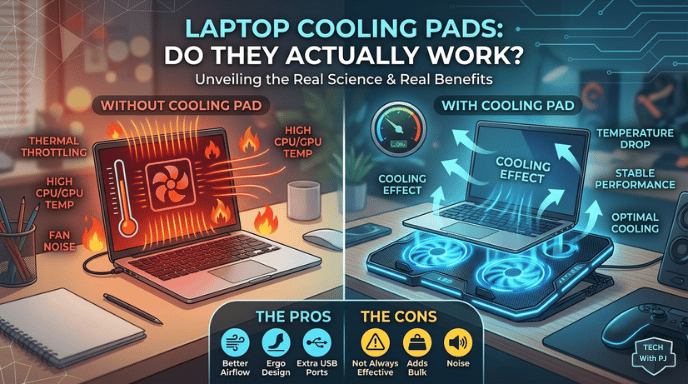
The question is simple. The answer is not.
"Do laptop cooling pads work?" gets a yes-or-no treatment in most articles, usually followed by a list of products. But the actual picture is considerably more interesting — and more useful — than a binary verdict. Cooling pads work for some laptops, in some usage scenarios, with some measurable benefit. They do almost nothing for others. And a small subset of the market is genuinely transformative for the machines that need it most.
Understanding which category your laptop falls into is the only way to make a good purchasing decision.
First: Why Laptops Overheat
Modern laptops are asked to do more in less space than ever before. The processors inside a mid-range 2025 gaming laptop can draw 80–175W of combined CPU and GPU power — while the chassis around them is thinner and lighter than machines from five years ago that ran on a third of that power.
When heat builds faster than it can be expelled through the laptop's internal fans and vents, the processor hits a temperature threshold — typically 95–105°C depending on the chip — at which a firmware mechanism called thermal throttling kicks in. The processor deliberately reduces its own clock speed to shed heat and prevent permanent damage. The result is lower performance: dropping frame rates in games, slower rendering in creative applications, stuttering in video calls, and slower response in CPU-heavy tasks.
Thermal throttling is not a sign of a broken machine. It is a safety feature. The question a cooling pad addresses is whether it can prevent that threshold from being reached in the first place.
What a Cooling Pad Actually Does
A powered cooling pad places fans beneath your laptop, pushing air upward through the laptop's bottom intake vents. The logic is that supplementing your laptop's internal airflow with an external air source lowers the temperature of the components inside.
There are four types of cooling pad design in the current market:
Multi-fan active pads: The most common design — typically 2–5 smaller fans arranged beneath the pad surface, running off a USB connection. These push ambient air toward the laptop's intake vents. Quality varies dramatically. A well-designed pad with properly positioned fans aligned to your laptop's actual vent locations can be genuinely effective. A cheap pad with fans positioned in the wrong spots moves air that never enters the laptop and does almost nothing.
Turbo / single blower designs: A single large, high-RPM fan generating stronger, more directed airflow than distributed smaller fans. More effective for laptops that need high-volume air delivery rather than distributed coverage.
Vacuum / suction designs: These attach directly to the laptop's exhaust vents and actively pull hot air out, rather than pushing cool air in. More effective for thin laptops where bottom vents are limited, but not universally compatible.
Thermoelectric (Peltier/TEC) pads: The technically most sophisticated option. These use a semiconductor element that actively pumps heat rather than just moving air — capable of cooling below ambient room temperature, unlike fan-based pads. Community benchmarks report 10–17°C lower temperatures compared to fan-only pads under sustained AI and rendering loads. These are heavier, require more power (typically external power rather than USB), and cost significantly more — but for sustained heavy workloads, they operate on a fundamentally different level.
Passive / elevated stands: No fans at all. These simply elevate the laptop off the surface, improving passive airflow around the chassis. Effective only for laptops running light loads where surface temperature, not internal cooling, is the limiting factor.
The Evidence: What Temperature Drops Are Realistic?
The marketing copy on many cooling pad listings promises dramatic results. "48°C temperature reduction!" reads one listing. This is a lab figure measured under controlled conditions that will not translate to your desk.
What does independent testing and user measurement actually show?
For well-matched pad-to-laptop combinations under genuine load:
- Entry-level fan pads (₹800–₹1,500): 2–5°C surface temperature reduction. Marginal improvement to internal temps.
- Mid-range pads with good airflow design (₹1,500–₹4,000): 5–10°C reduction in CPU/GPU temperature under sustained load. This range is where you begin to see practical throttling prevention.
- Premium sealed/turbo pads (₹4,000–₹8,000): 10–15°C reduction, particularly for laptops with clear bottom intake vents. Measured delta for premium hybrid pads is 5–7°C GPU, 4–6°C CPU under controlled conditions.
- Thermoelectric pads: 10–17°C beyond fan-only results under sustained heavy loads — but only worth the premium for machines running sustained AI inference, rendering, or multi-hour gaming.
Community testing published in gaming forums corroborates this: one user saw CPU temps hit 89°C with no cooling pad, dropping to 72°C — a 17°C improvement — at 2800 RPM with a high-powered sealed pad, with FPS drops stopping. Another measured GPU temperatures fall from 70°C to 49°C under the same conditions.
The important ceiling: Fan-only pads can only move ambient air. They cannot cool below room temperature. If your room is 28°C, the absolute best a fan pad can do is bring your laptop's external surface toward 28°C — and internal temperatures will always be higher than that. This ceiling is a fundamental physics limit, not a product quality issue.
Does It Actually Improve Performance?
This is where the maths gets meaningful. A reduction of 10–15°C in CPU/GPU temperature does not just mean a cooler machine — it means the processor stays above its throttle threshold and runs at full clock speed for longer.
Every 10°C reduction in CPU/GPU temperature may restore 10–20% of lost performance in modern gaming hardware, according to community benchmarks.
For gaming specifically: a cooling pad prevents the loss of power rather than adding power. When CPU and GPU get too hot, thermal throttling intentionally slows them down. A quality cooling pad provides a consistent stream of fresh air to the intake vents, keeping temperatures below the throttle threshold — not overclocking the machine, but allowing it to run at its intended speed for longer.
In GPU-bound gaming titles, users report 5–7% sustained FPS uplift when using a pad that prevents throttling. In CPU-bound scenarios, the gains can be larger — 10–15% — because CPU throttling under load is more aggressive than GPU throttling on most gaming laptops.
The framing that matters: a cooling pad does not make a laptop faster than its rated specifications. It helps the laptop reach and sustain its rated specifications without being cut short by heat.
When a Cooling Pad Helps the Most
Heavy sustained workloads
If you run your laptop at close to maximum load for extended periods — gaming sessions of an hour or more, video rendering, 3D modelling, local AI inference, or live streaming with encoding — the thermal environment inside your laptop is genuinely stressful. Internal fans are running at high RPM, temperatures are approaching throttle thresholds, and clock speeds are being managed. A good pad in this scenario actively prevents the performance degradation that would otherwise accumulate over the session.
Thin and light gaming laptops
The laptops that benefit most are those where the manufacturer prioritised chassis thinness over thermal headroom — a 17mm slim gaming laptop with a 100W+ GPU has less physical space for internal cooling than a chunkier equivalent. These machines often run hot by design, and their throttle thresholds are hit more quickly. External cooling addresses exactly this compromise.
Warm ambient environments
A pad delivering 5°C delta at 22°C room temperature may only achieve 2–3°C at 32°C. This is important for Indian users particularly, where summer ambient temperatures can exceed 35–40°C indoors without air conditioning. In these environments, a cooling pad is most useful when combined with room cooling — trying to solve a 40°C ambient problem entirely with an air-moving pad is unrealistic.
Older laptops with accumulated dust
Over 18–24 months of use, dust accumulates in laptop fans and heatsink fins, dramatically reducing cooling efficiency. A cooling pad partially compensates for this degradation. The full solution is internal cleaning — blowing out the dust — but a cooling pad extends the interval between necessary cleanings and provides interim relief.
When a Cooling Pad Helps Very Little
MacBooks and laptops with side intakes
Cooling pads blow air upward through the pad surface. MacBooks (and some thin ultrabooks) do not have significant bottom intake vents — they draw air through the keyboard deck or sides. A standard pad blowing air at the MacBook's metal bottom does essentially nothing to the internal cooling system, though the elevation can help slightly with ambient heat dissipation.
Light workloads where throttling is not occurring
If your laptop is browsing, handling documents, playing light games, or doing tasks that keep CPU load below 40%, it is almost certainly not thermally throttling. In this scenario, a cooling pad makes the underside of your laptop slightly cooler to the touch — which is the only measurable effect — while draining your USB port and making noise. The investment is not justified.
Laptops with internal design problems
If your laptop is aggressively throttling despite good ambient temperatures and a relatively light workload, the issue is likely a degraded thermal paste connection between the CPU/GPU and the heatsink — a common problem in laptops over two years old. A cooling pad will not fix this; re-applying thermal paste (a 20–30 minute repair job at a service centre) will. A pad in this scenario is treating the symptom rather than the cause.
Cheap pads with misaligned fans
A cooling pad that blows air in the wrong direction — toward a solid laptop bottom rather than through actual intake vents — can slightly raise surface temperature by trapping warm air between the pad and the laptop. Check where your laptop's actual bottom intake vents are (if any) before buying, and ensure the pad's fan positions align.
How to Know If Your Laptop Is Throttling
Before buying any cooling solution, check whether your laptop actually has a thermal problem. This takes five minutes:
- Download HWiNFO64 (free, no install required) or HWMonitor (free)
- Run a demanding task — a game, a render, or a stress test (CPU-Z has one built in)
- Watch the CPU and GPU temperature readings in real time
If temperatures reach 95–105°C and clock speeds drop (visible in the "Core speed" reading), your machine is throttling and a cooling pad is likely to help. If temperatures stabilise at 75–85°C with no clock speed drops, your machine is managing thermals fine and a pad will provide little measurable benefit.
What to Look For When Buying
Vent alignment first. Identify where your laptop's bottom intake vents are. Buy a pad whose fan positions correspond to those vents. A pad with fans blowing at solid chassis panels is a waste of money.
Fan quality over fan count. Three quality fans with good blade design move more useful air than seven cheap fans that recirculate noise. Look for pads with fan speeds of 1,500–2,500 RPM for typical use, 2,500–3,500 RPM for gaming.
Sealed chamber design for gaming laptops. Pads that use foam seals around the laptop's edges to direct all airflow through the intake vents (rather than losing air around the sides) are consistently more effective than open-frame designs. The difference can be 3–5°C in real-world use.
USB power vs wall power. Pads powered by USB draw from your laptop's battery or charging capacity. Heavy-duty pads (large fans, multiple fans) should ideally have their own wall adapter to avoid adding load to the laptop's USB system.
Size match. A 15.6-inch pad for a 17-inch laptop does not provide full coverage. An oversized pad for a 13-inch ultrabook is unnecessary bulk.
Adjustable fan speed. For non-gaming use, you want to reduce fan noise significantly. A pad with adjustable speed settings lets you dial down to near-silent for office work and ramp up for gaming sessions.
The India Price Guide
| Type | Price Range | Temperature Delta | Best For |
|---|---|---|---|
| Basic passive stand (no fan) | ₹300–₹800 | 0–2°C | Light use, ergonomics |
| Entry fan pads (2–3 fans, USB) | ₹800–₹1,800 | 2–5°C | Office laptops, light gaming |
| Mid-range active pads | ₹1,500–₹4,000 | 5–10°C | Gaming laptops, regular use |
| Premium sealed/turbo pads | ₹4,000–₹8,000 | 10–15°C | Heavy gaming, sustained load |
| Thermoelectric / Peltier pads | ₹8,000–₹20,000 | 10–17°C beyond fan pads | AI workloads, content creation |
Alternatives Worth Considering
A cooling pad is one of several tools for managing laptop thermals. Depending on your situation, the following may be more impactful:
Thermal paste replacement (₹200–₹500 parts + ₹500–₹1,000 service): If your laptop is 2+ years old and running hot, dried-out thermal paste between the CPU/GPU and heatsink is a far more common culprit than insufficient airflow. Re-applying quality thermal paste (Arctic MX-6, Thermal Grizzly Kryonaut) can reduce temperatures by 8–15°C — more than most mid-range cooling pads. Do this first for older machines.
Dust cleaning (free to ₹500 at service centre): Dust accumulation in heatsink fins is the number one cause of gradual thermal degradation in laptops over 18 months. Compressed air through the exhaust vents, or a professional cleaning at a service centre, can recover 5–10°C of headroom.
Undervolting: Reducing the CPU's core voltage (via software like Throttlestop or Intel XTU, where supported) reduces heat generation without reducing performance. Can drop temperatures by 5–10°C with no hardware changes and no cost. Note: not available on all processors, and may void warranty.
Adjusting fan curves: Many gaming laptops allow manual fan curve adjustment through manufacturer software (ASUS Armoury Crate, Lenovo Vantage, MSI Dragon Center). Running fans at higher RPM earlier in the thermal curve prevents temperatures from reaching throttle thresholds — at the cost of more noise.
Room cooling: The most effective thermal solution for sustained heavy workloads in a warm Indian summer is air conditioning or a fan directed at the laptop. Reducing ambient temperature by 5°C has approximately the same thermal effect as a mid-range cooling pad — and benefits the user as well as the machine.
The Verdict
Cooling pads work — when the conditions are right. For laptops that are genuinely thermally throttling under sustained heavy load, a quality cooling pad with proper vent alignment can reduce temperatures by 5–15°C and recover 5–15% of lost performance. For gaming laptops running hot in India's warm climate, the benefit is real and measurable.
Cooling pads do almost nothing for laptops that are not throttling, MacBooks without bottom vents, or machines where the actual problem is dried thermal paste or accumulated dust. Spending ₹2,000 on a cooling pad for a laptop that is not throttling will produce a slightly cooler surface to the touch and a noticeable noise source.
The decision framework: Run HWiNFO64 or HWMonitor during your heaviest typical workload. If you see temperatures above 90°C with corresponding clock speed drops, a cooling pad is worth ₹1,500–₹4,000. If you see temperatures stabilising at 75–85°C without clock drops, clean the dust, check the thermal paste, and skip the pad.
For most casual users and office workers: you do not need one.
For heavy gamers, video editors, and anyone running a slim gaming laptop through two-hour sessions in a warm Indian room: a mid-range active pad will earn its cost back in both performance consistency and component longevity.
Temperature measurements referenced from HWiNFO64 community benchmarks, Tom's Hardware testing, and KryoZon/Alibaba industry guides. All price ranges reflect current Indian market rates from Amazon.in and Flipkart. Your results will vary based on laptop model, vent design, ambient temperature, and workload intensity.
